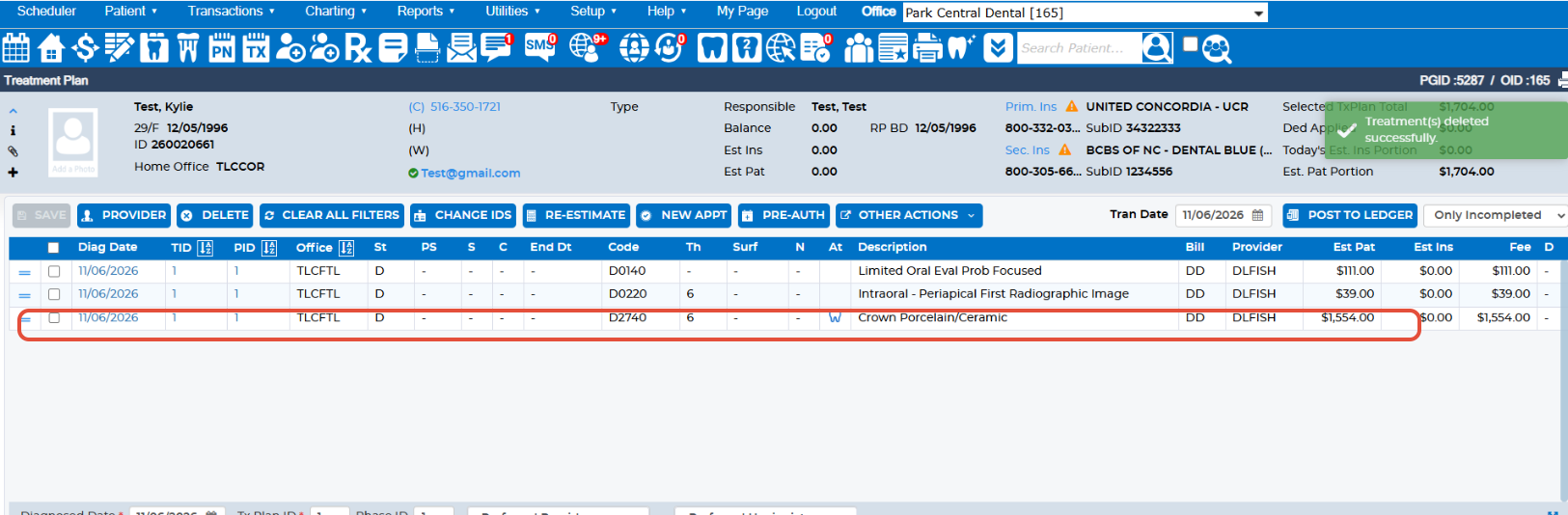
In the patient's treatment plan, ensure you are selecting the correct PID to send to the patient.
Example: We are sending crown #6 which is under TID 1/PID 1.
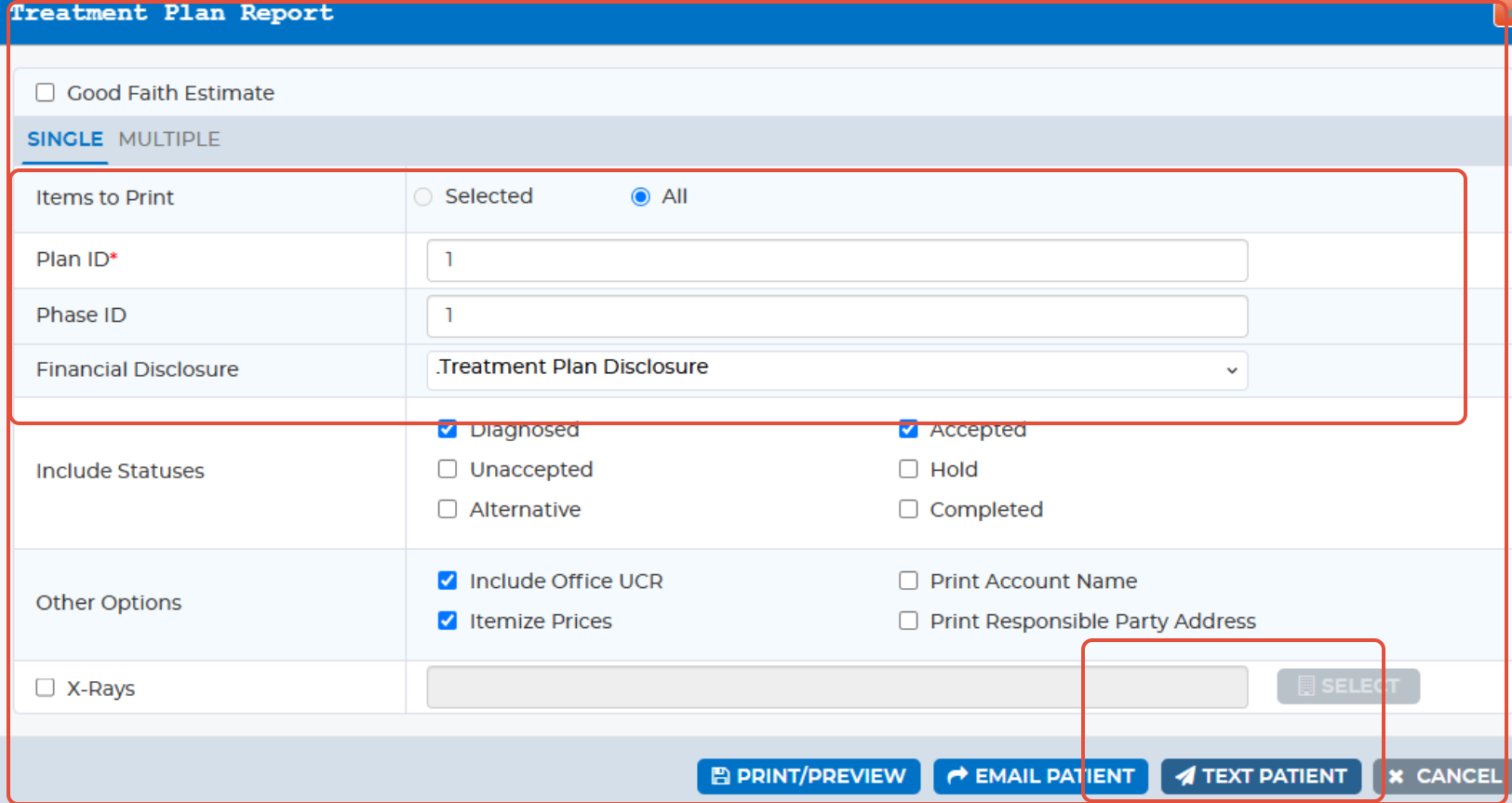
2. With the correct PID sent, select "Text Patient"
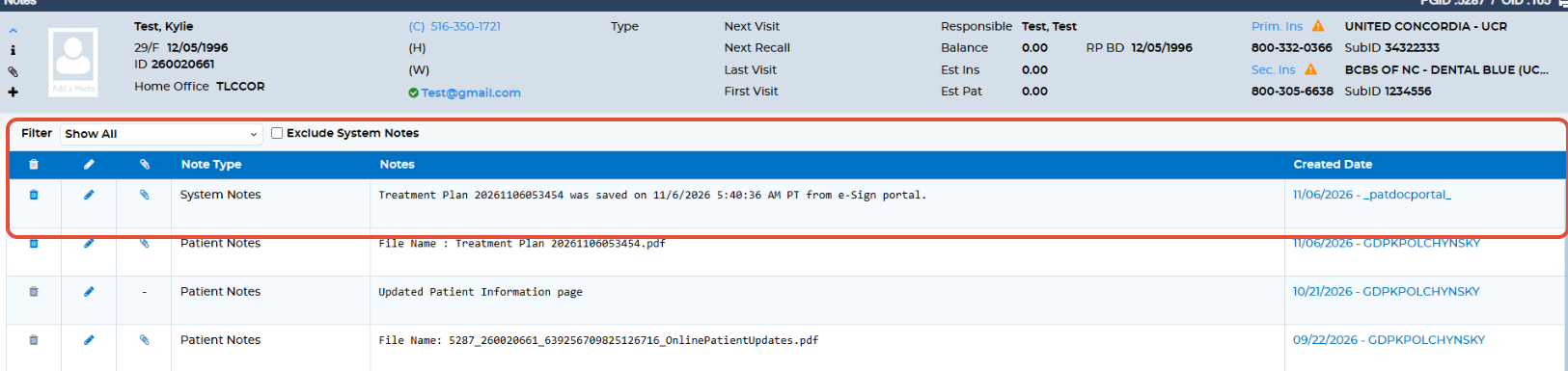
 3. Navigate to the patient's cellphone number to click on message history and you will see a message sent to the patient indicating their treatment plan was sent. It will also populate in the patient notes.


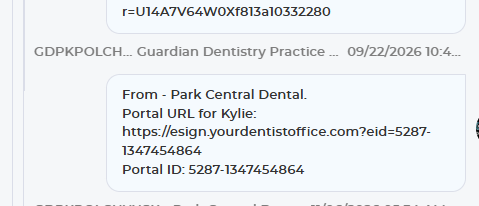
4. The patient will receive the text message with a link to sign the document.
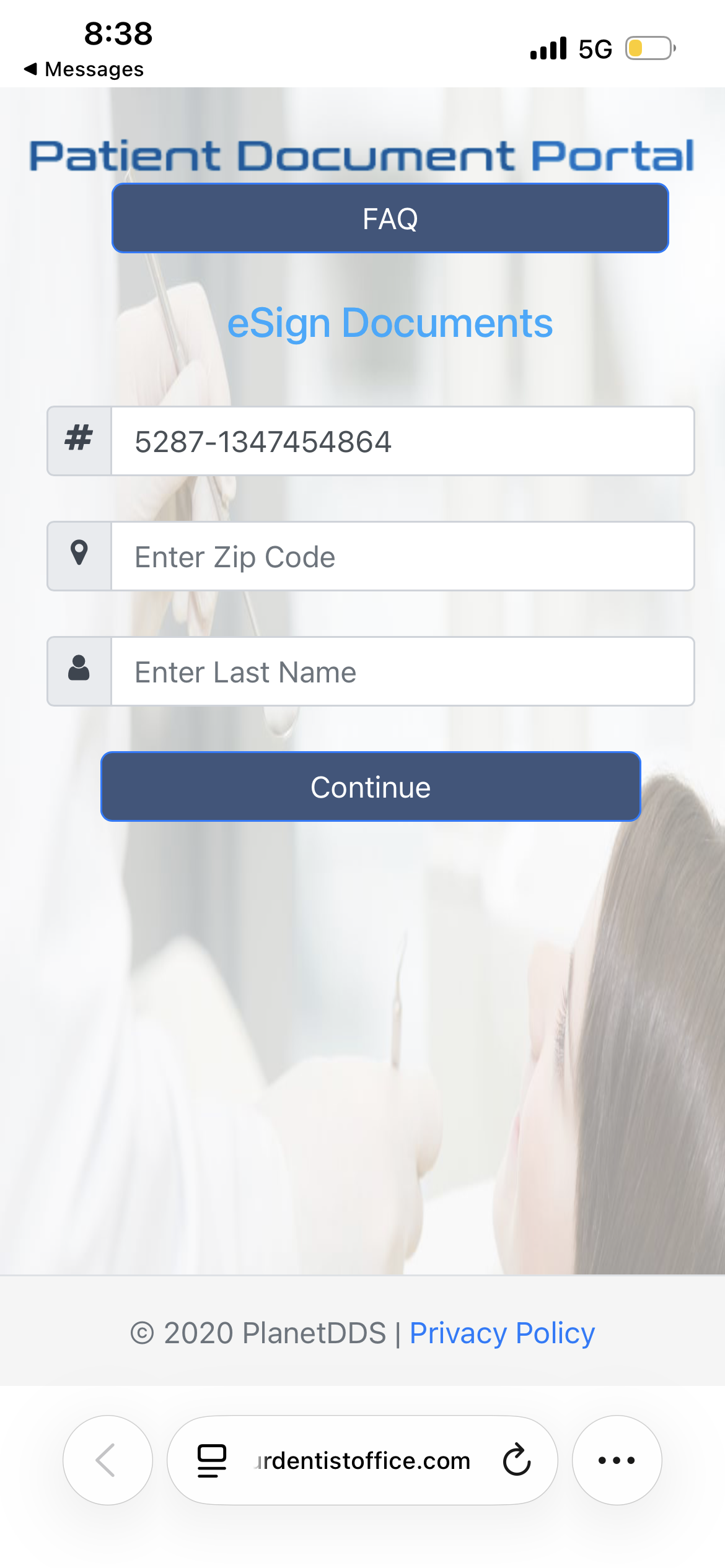
IMPORTANT: The patient must enter their Zip Code and Last Name and it must match what we have in Denticon or it WILL NOT populate for them.
5. Once the patient has signed the document, it will populate in the patient notes under "Patient Portal"
Was this article helpful?
That’s Great!
Thank you for your feedback
Sorry! We couldn't be helpful
Thank you for your feedback
Feedback sent
We appreciate your effort and will try to fix the article