What Moves with the Patient
Moving a patient to a new Responsible Party brings all the following along automatically:
Ledger history (services, payments, adjustments) | Clinical notes |
Imaging and X-rays | Insurance information |
Treatment plans | Appointments |
Contracts | Messages/Flash Alerts |
Nothing is left behind, duplicated, or disconnected in the process.
Step 1: Open the Patient Record
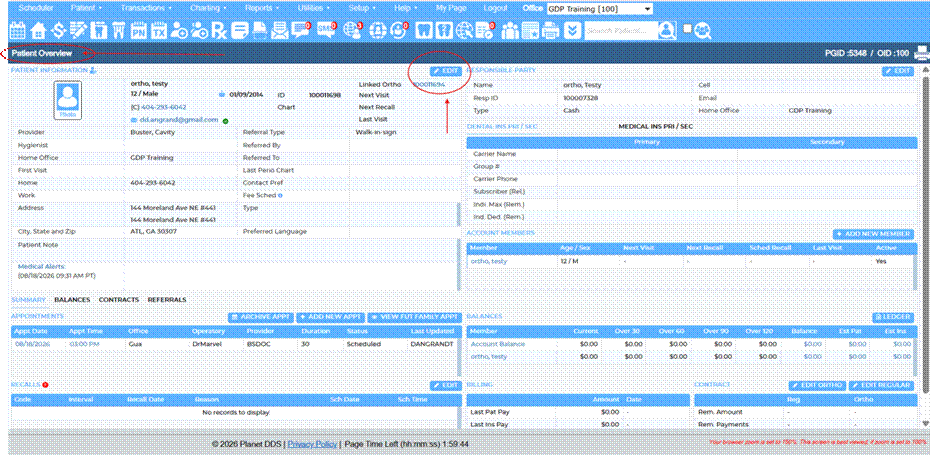
Search for the patient you need to move and open their Patient Overview screen.
Step 2: Access the Move Patient Workflow
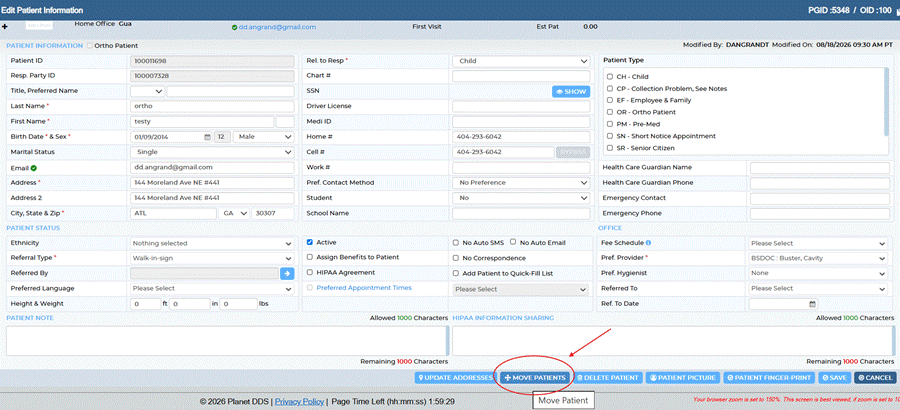
Scroll to the bottom of the Edit Patient Information screen.
Select Move to Self. The right-hand panel confirms this will make the patient their own Responsible Party. Click CONTINUE.
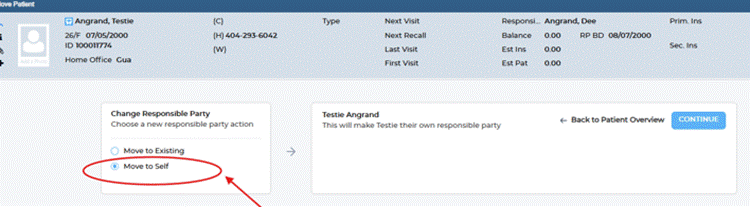
With “Move to Self” selected, Denticon confirms the patient will become their own Responsible Party. Click CONTINUE to proceed.
On the Confirm Responsible Party screen, compare the Previous Responsible Party card with the New Responsible Party (Self) card to make sure this is the right patient before continuing.
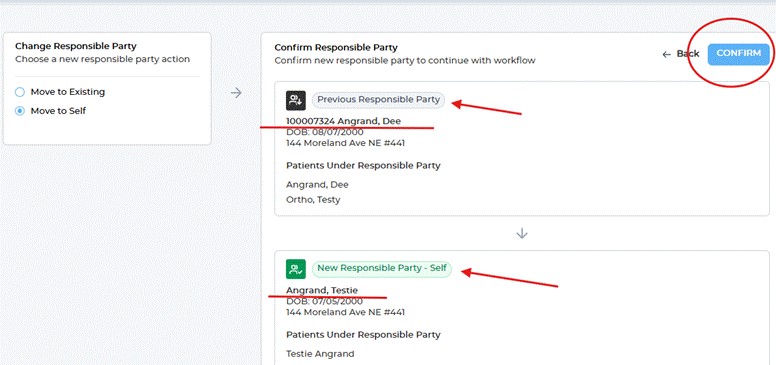
The Confirm Responsible Party screen shows the patient's previous Responsible Party next to their new status as their own Responsible Party. Click CONFIRM.
Patient Overview reopens with the patient now listed as their own Responsible Party.

Patient Overview now shows the patient (here, Angrand, Testie) listed as their own Responsible Party, with a new Resp ID.
Note: Confirming a move takes effect immediately, so double-check the Previous and New Responsible Party cards, especially the list of patients under each, before you click CONFIRM. |
S
Was this article helpful?
That’s Great!
Thank you for your feedback
Sorry! We couldn't be helpful
Thank you for your feedback
Feedback sent
We appreciate your effort and will try to fix the article