From the Patient Overview, click the word  on the Dental Insurance side
- Copy & paste the Group number into the search text box
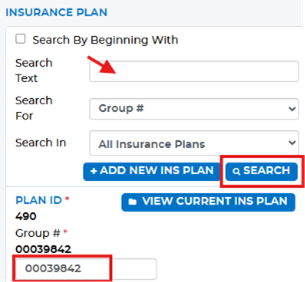
- Select Group number in the Search For box and click Search
- If the group number is not found:
- Enter the employer name (less is more) in the search text box
- Select Employer Name in the Search For box
- Or Enter the carrier in the search text box
- Select Carrier Name in the Search For box
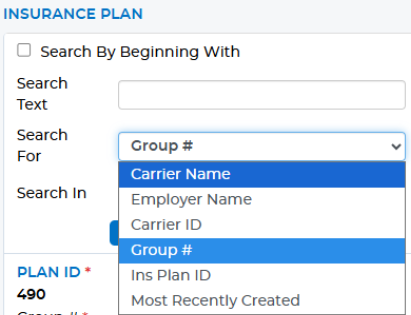
- Search for the office Discount plan, highlight and select
- Enter effective and term dates
- NOTE: Do not enter term dates for any other plans
Once the correct plan is found, make sure the Subscriber ID matches and the remaining max has been updated to reflect what's in the legacy system or the carrier website. Save at the bottom of the screen
- Click the yellow triangle and press Check Eligibility

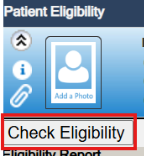
- If breakdown comes up, the triangle changes to green checkmark
- If the carrier doesn't participate, but you have verified eligibility on the carrier website, you can manually mark the patient eligible:
- Click Update Status on the righthand side
- Choose Eligible
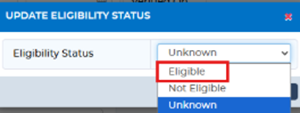
- Save then save at the bottom of the screen
- NOTE: Do not enter term dates for any plans
In the Patient Overview, click Edit in the Responsible Party corner
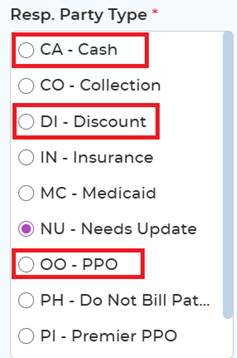
- Choose the appropriate Responsible Party Type:
- PPO
- Discount
- Cash
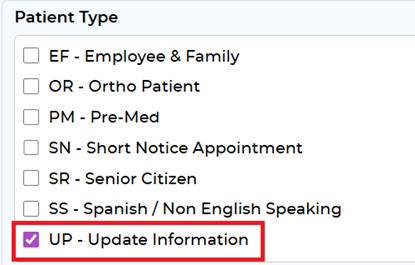
In the Patient Overview, click Edit on the Patient Information side
- Uncheck the Update Information box in the Patient Type area
Was this article helpful?
That’s Great!
Thank you for your feedback
Sorry! We couldn't be helpful
Thank you for your feedback
Feedback sent
We appreciate your effort and will try to fix the article