To add a patient to the 'Quick Fill' list a user will do the following:
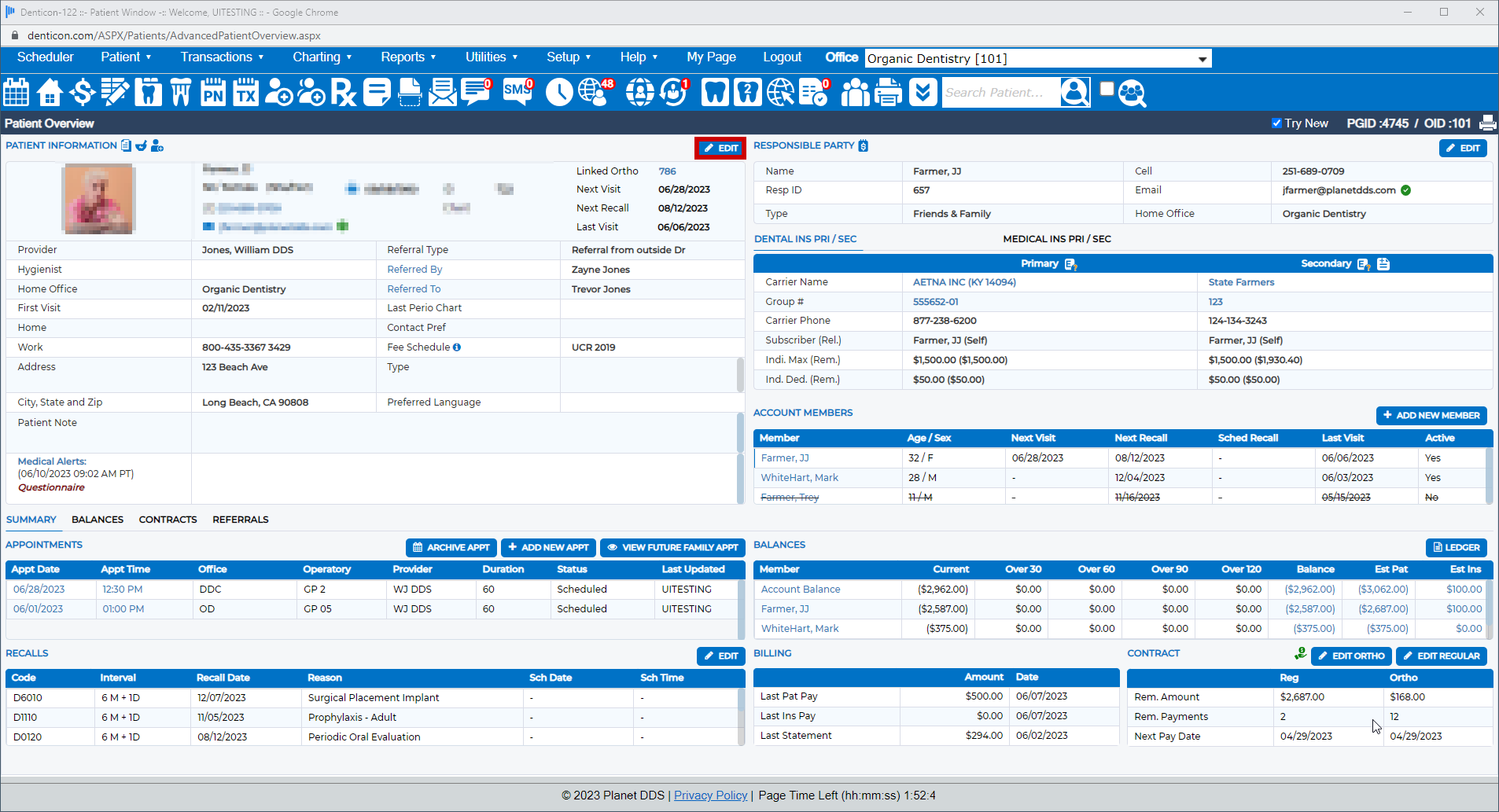
- From the Patient Overview Screen, Click Edit next to the Patient ID
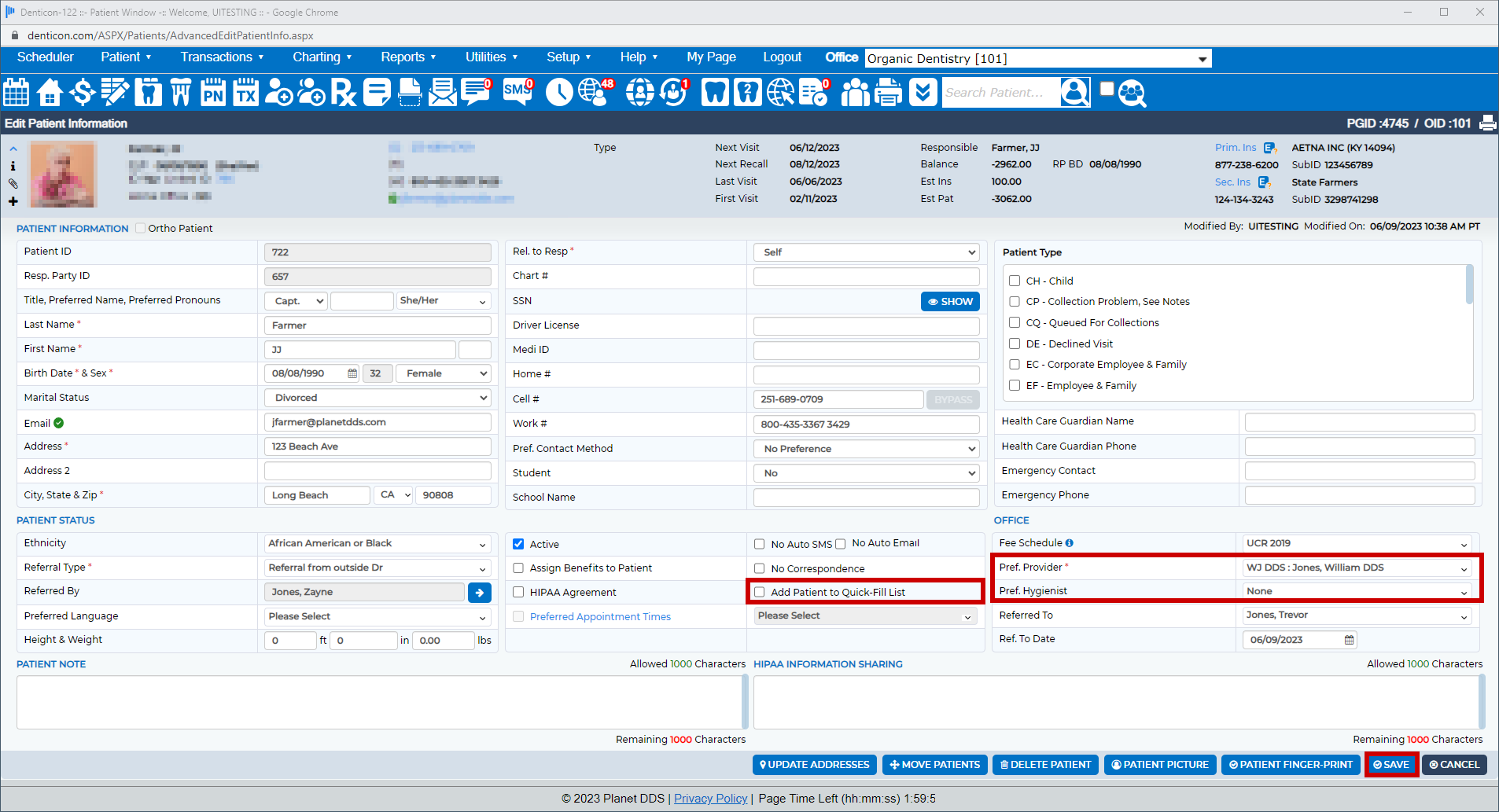
- Place a check-mark next to 'Add Patient to Quick Fill List'
- Select Preferred Provider, Preferred Hygienist, or Any Hygienist
- Review the patient 'Preferred Provider' and 'Preferred Hygienist' selected in their record
- Please make sure you click "Save" on the patient record to save your changes.
Note: Patients with unchecked "Active" fields (known as inactive patients) will still appear on this list as well. Only unchecking "Add Patient to Quick Fill List" will remove them from a Quick Fill list.
OR
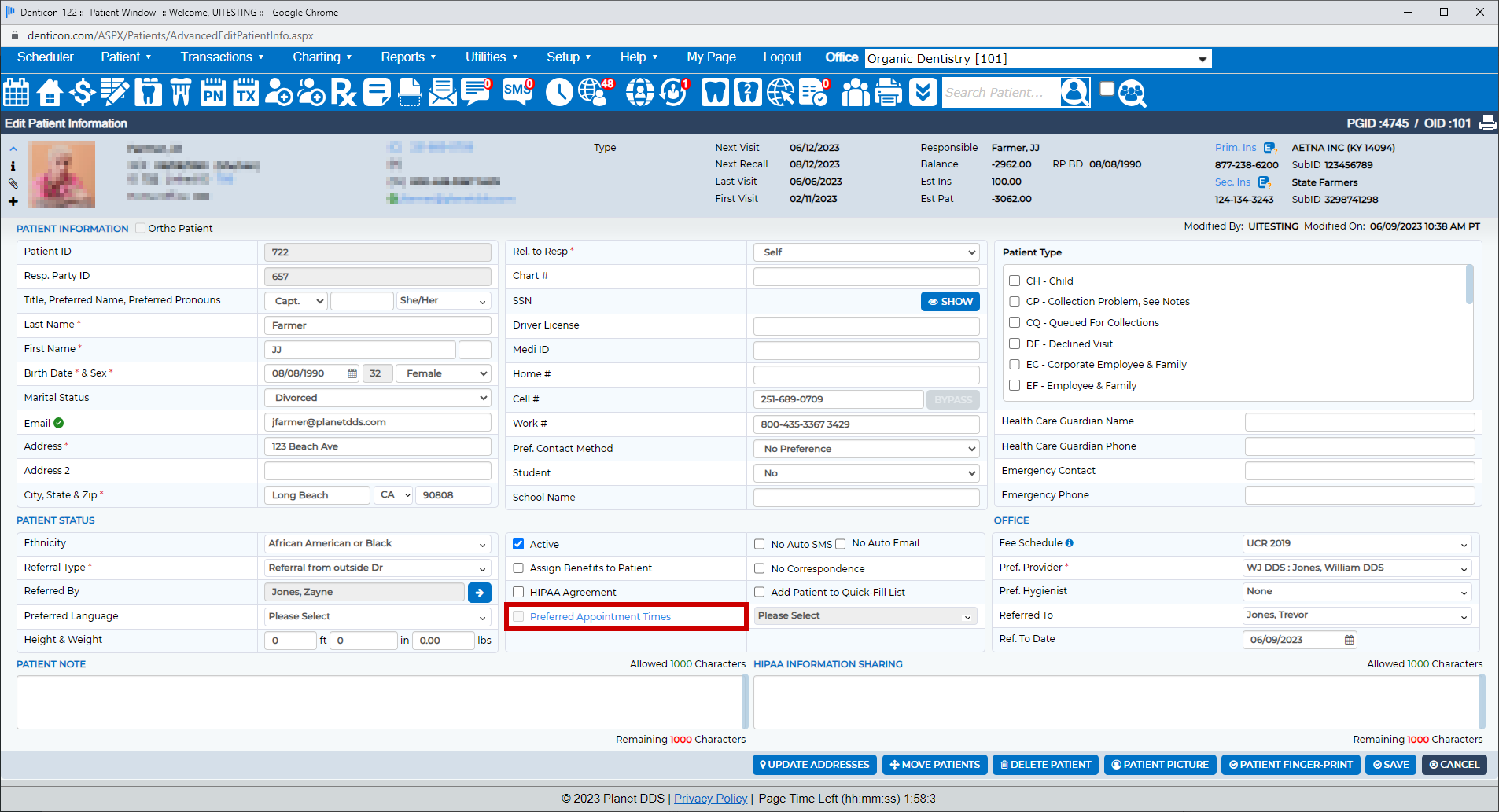
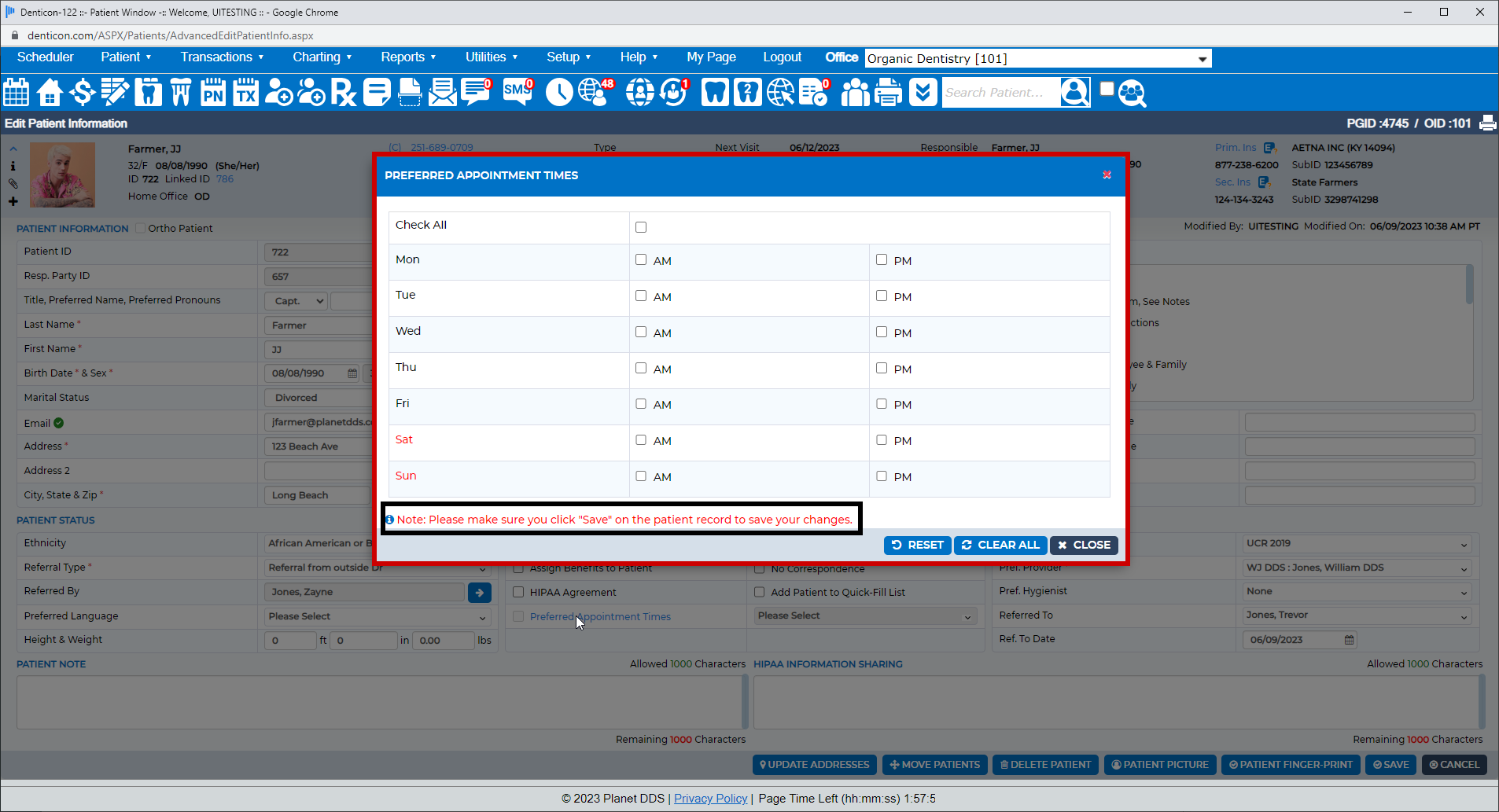
Indicate a Short Notice Preference
Fill your schedule by quickly notifying patients via text message that appointments are available.
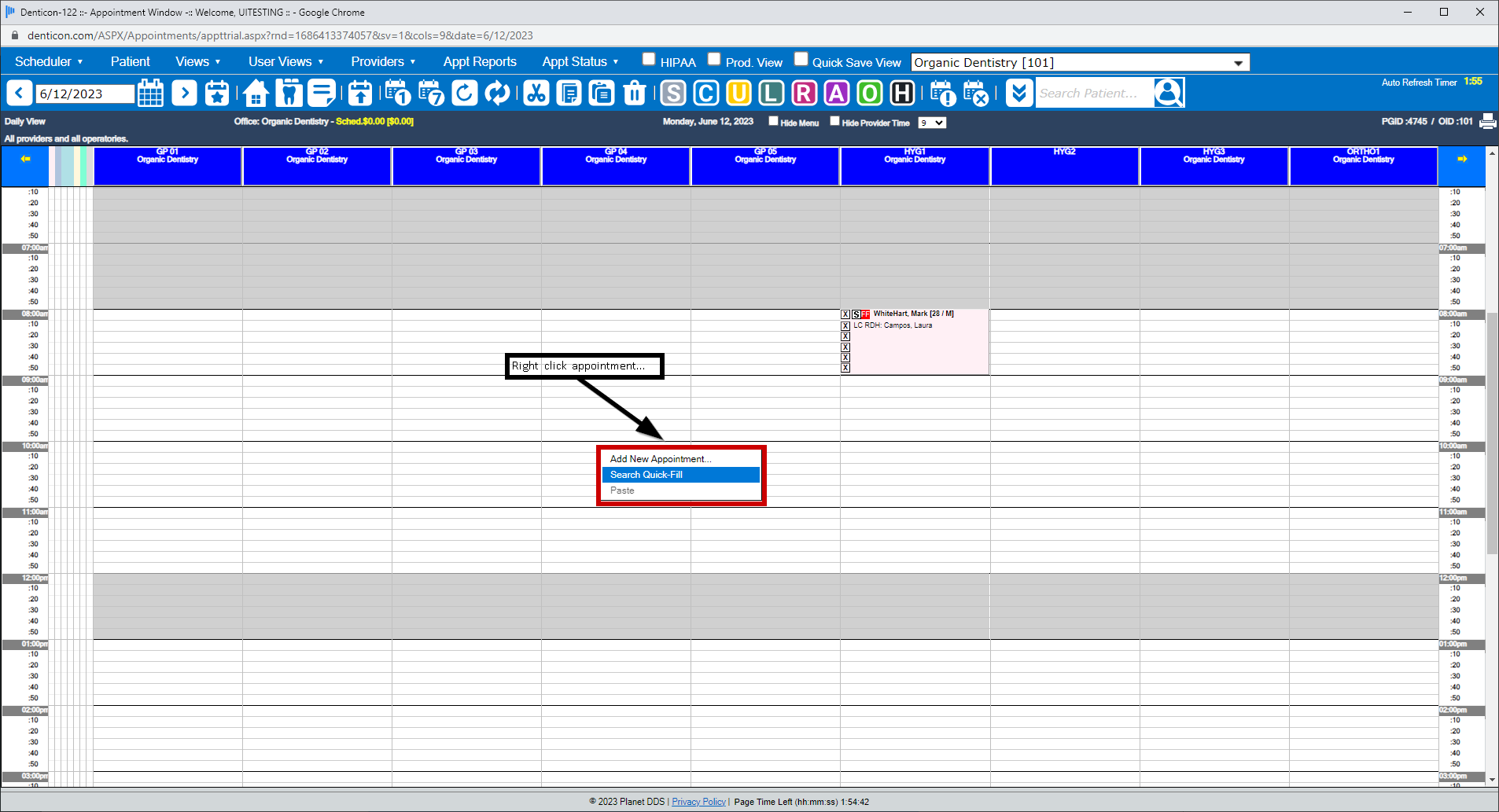
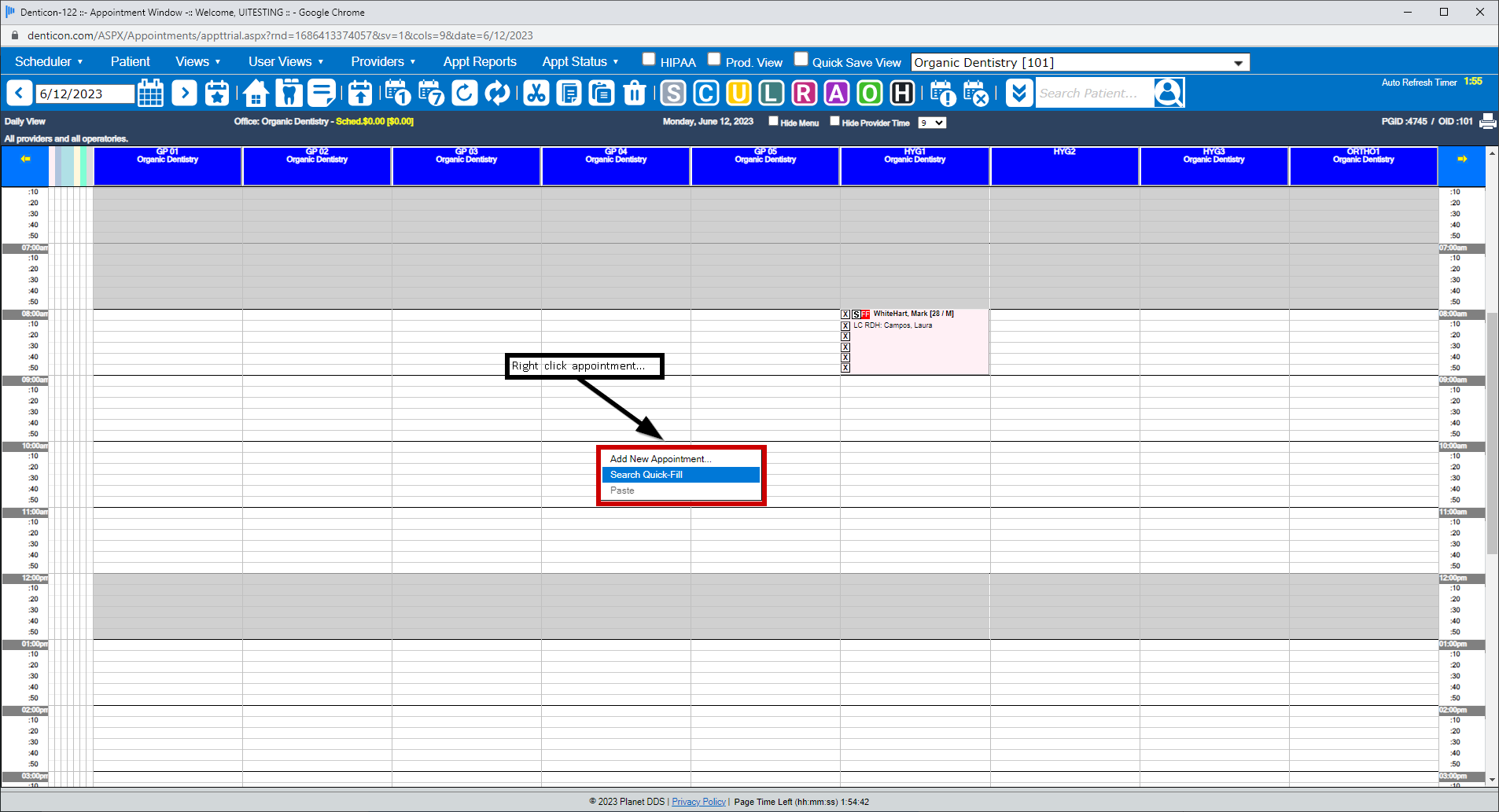
- Select an empty slot on the scheduler, right click, and select “Search Quick-Fill”
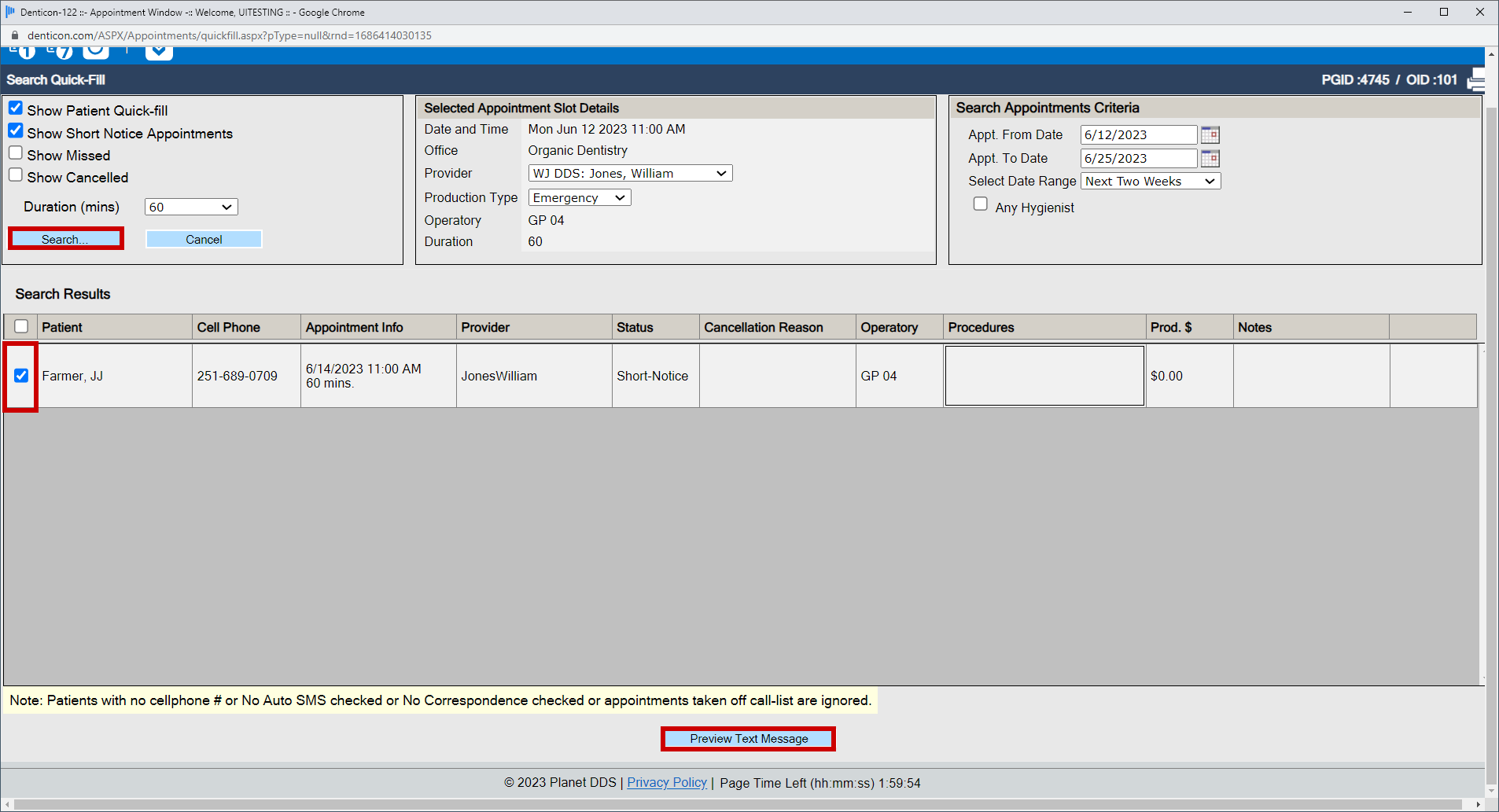
- Users can search for patients who have missed or cancelled appointments that need to be rescheduled
- “Short Notice” results appear based on the patient’s day of the week and time preferences
Note: Patients that have been marked as “No Auto SMS,” “No Correspondence,” or do not list a cell phone number on their patient records, will not appear in the results.
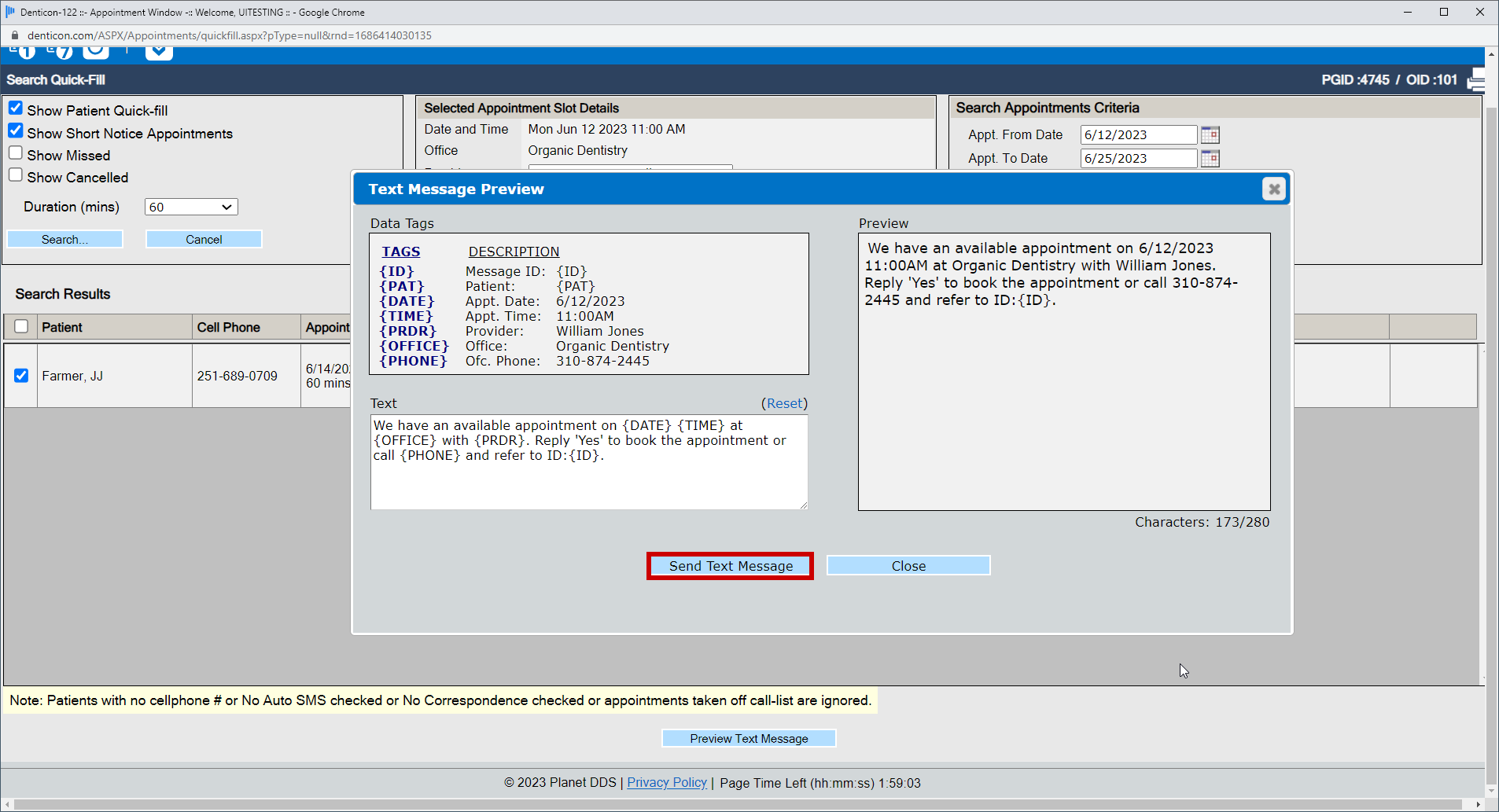
Users can select multiple (up to 25) results. “Preview Text Message” displays a sample of the message that will be sent. Users can edit the message if needed. The message can then be sent to the selected patients.
Note: The character limit for a single SMS message is 150 characters
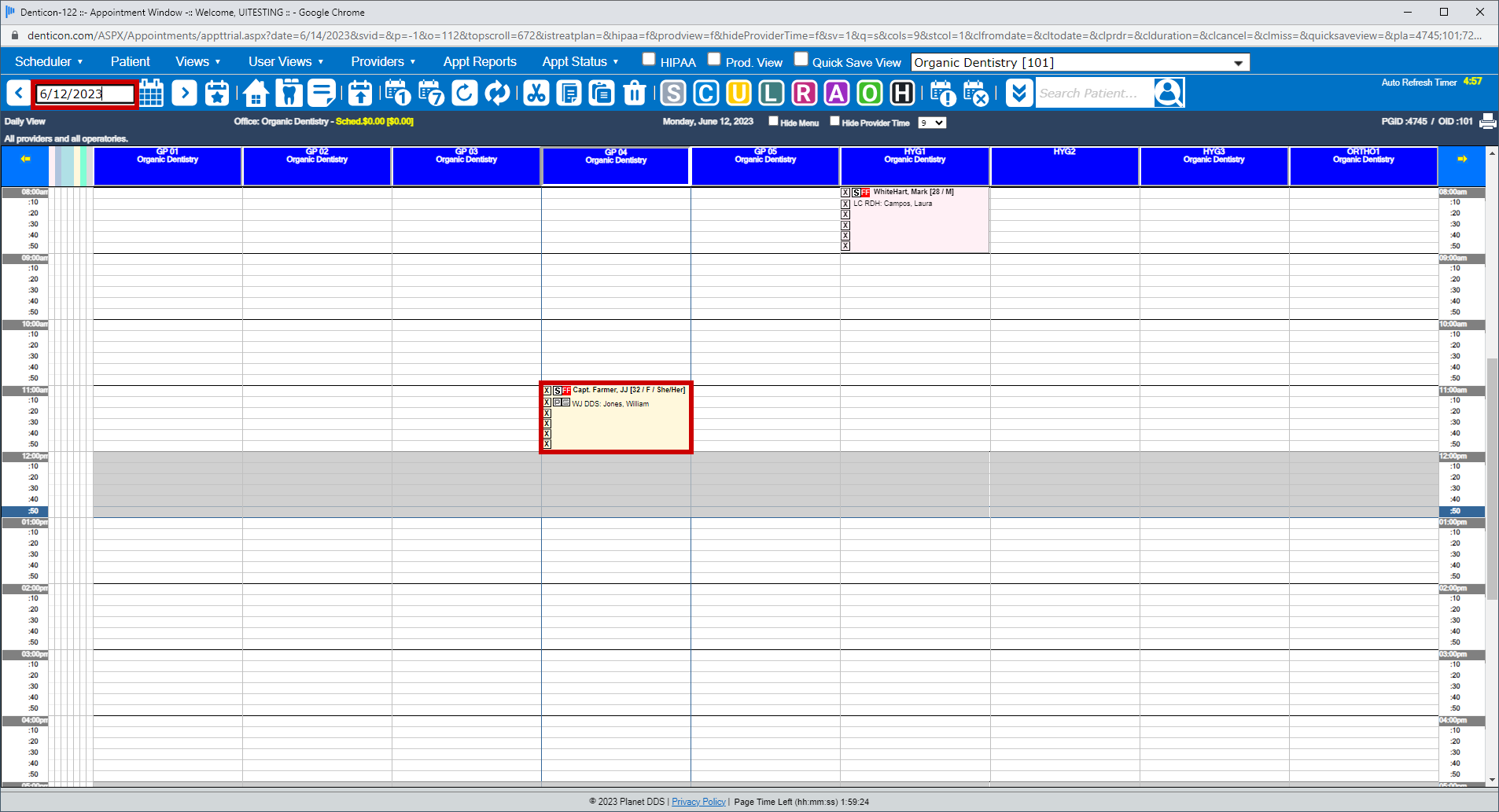
The appointment slot is reserved on the scheduler with a placeholder showing “Quick-Fill.” The placeholder will remain on the schedule until it has been removed or filled.
When a patient is interested in the appointment, they can call the office number listed and refer to the Message ID.
Please note that the only responses Quick-Fill recognizes from patients are: Yes, Y, Confirm, C and Si. If a patient responds with "Ok" it will not be recognized.
When a Quick Fill appointment is reserved by a patient, they receive a confirmation text message. The other patients that were part of the broadcast will receive a second text message letting them know the appointment is no longer available. If the "Quick-Fill" placeholder has been deleted, the second text message will not go out.
To book the Quick Fill Appointment, Users have 2 options:
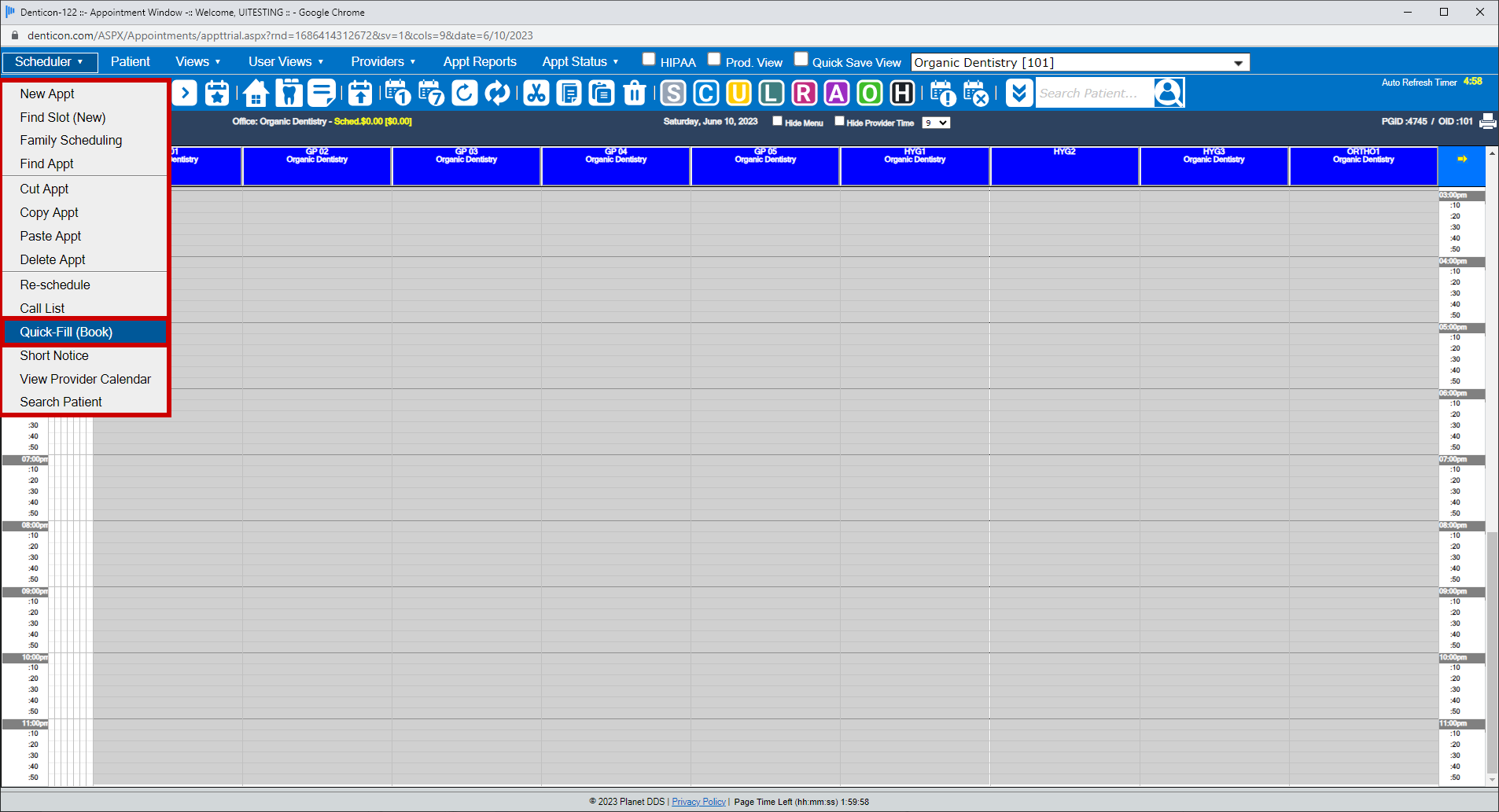
• Click Scheduler > Quick-Fill (Book)>> Searching by “Appointment Date Time” will display the announced time slots
• Users can search by Message ID and enter the ID number the patient references over the phone
• Right Click the “Quick-Fill” placeholder on the scheduler
• Click on the “Book” button for a patient that will take the user to the “Add/Edit Appointment” screen for additional details
OPTION 1
OPTION 2
Was this article helpful?
That’s Great!
Thank you for your feedback
Sorry! We couldn't be helpful
Thank you for your feedback
Feedback sent
We appreciate your effort and will try to fix the article